
In today’s digital world, video files play a critical role in communication, entertainment, education, and other domains. From personal memories captured on smartphones to high-quality footage, the corruption of these video files feels distressing. If you ever find your video corrupted or inaccessible, it’s important to immediately apply adequate repair fixes.
A corrupted video may refuse to play, freeze midway, show distorted visuals, lose audio, or display error messages. In this article, we’ve outlined various reasons why videos get corrupted and how to fix them. By following the recommended repair solutions and preventive measures, you can minimise the risk of video corruption and avoid such issues altogether.
Understanding What Is Video Corruption
Video corruption happens when a video file’s data structure is damaged, making it partially or completely unreadable by media players. A video file consists of two main components:
- Container (File Format) – such as MP4, AVI, MKV, MOV
- Codec (Compression Method) – such as H.264, HEVC, MPEG-4
If any of the container structure or codec data is damaged, the video may fail to function properly. Corruption can affect metadata, headers, frames, or audio-video synchronisation.
Why Videos Get Corrupted? [Common Reasons]
When you find your video file corrupted, it’s important to understand the exact reason for such corruption. Some main reasons why video files get corrupted are:
Incomplete File Transfer or Download
One of the main reasons for video corruption is an interrupted download or file transfer. If the video download and transfer process is interrupted – due to network issues, power failure, or accidental interruptions – the file may miss essential data and become unplayable.
Sudden Power Failure or Improper Shutdown
Abrupt system shutdowns, battery drain, or power failure when video recording, editing, or saving is in process, it may corrupt the video files. This is mainly common with cameras, drones, CCTV systems, and smartphones.
Faulty Storage Media
Bad sectors and physical damage on your storage device, which generally happen due to continuous usage for a long time, can corrupt videos stored on it.
Malware or Virus Attacks
Malicious programs like viruses or malware can alter, encrypt, or damage video files either intentionally or as a side effect of broader system corruption. To avoid such issues, you can install a reliable antivirus software on your device.
Codec or Media Player Issues
Sometimes the video file itself is not corrupted, but the system lacks the appropriate codec required to decode it. Incompatible or outdated media players may incorrectly interpret the file, leading to playback errors that resemble corruption.
Overwriting or Partial Deletion
Accidentally overwriting part of a video file or interrupting deletion processes can cause data inconsistency, leading to corruption.
Signs of Corrupted Video Files
When your video file gets corrupt due to any of the aforementioned reasons, you may encounter the following symptoms while playing it:
- It does not open or play at all
- Display error messages such as “Cannot play file”
- Shows distorted visuals, green screens, or pixelation
- Video duration might appear as 0 seconds
- Playback freezes, stutters, or stops midway
How do I Fix Corrupt Video Files? [Quick Methods]
If you are experiencing any of these issues while playing video files, it’s important to immediately proceed with the repair workarounds. Fixing a corrupted video depends on the extent of damage and the cause. Here are some quick and easy methods that you can try for video repair:
Method 01: Try a Different Media Player
Sometimes the video itself isn’t corrupted; the issue lies with the media player, which prevents it from playing properly. In such cases, you can try the following media players:
- VLC Media Player
- Windows Media Player
- QuickTime, etc.
Some video repair tools come with built-in error correction and advanced codec support. Review the features of each option and choose the one that best suits your requirements.
Method 02: Repair Videos Using VLC Player
VLC is a versatile media player, widely known for its compatibility with different video formats. It also offers built-in features that can fix minor playback issues, especially in damaged AVI files. Here’s how to repair corrupted videos using VLC player:
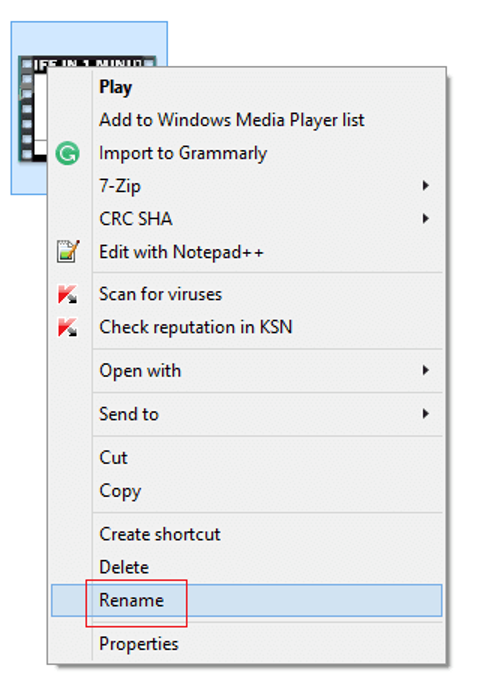
- Firstly, right-click on your video file and select Rename. Change the file format to .avi and press Enter.
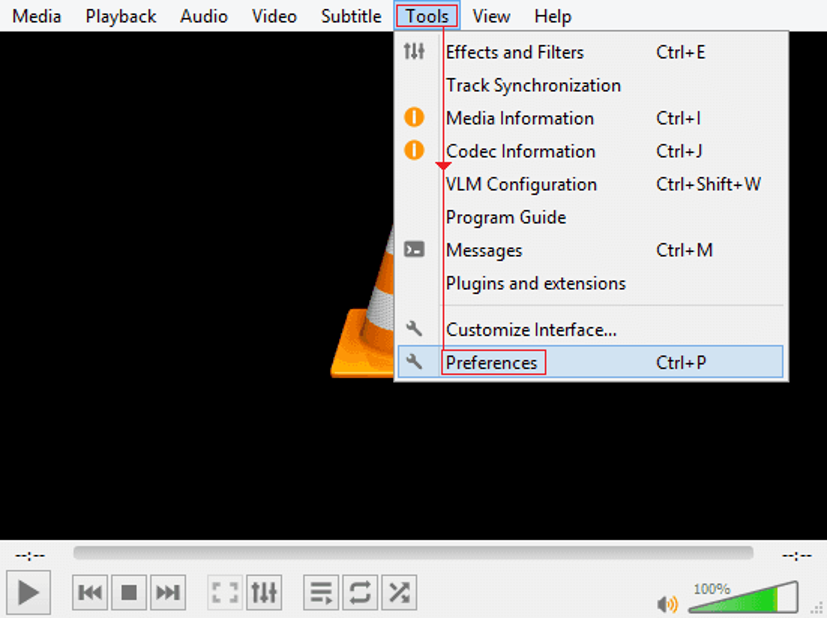
- Launch VLC, go to Tools and select the “Preferences” option.
- Click on the “Input/Codecs”, and then scroll down to the Files
- Now, select “Always fix” from the “Damaged or incomplete AVI file” option and click Save.
- Once done, try playing the corrupt .mp4 video file with VLC and check whether it is working or not.
Method 03: Repair Videos Using Online Video Repair Tool
If the above manual methods seem complex, use third-party online video repair tools to fix corrupt or damaged video files with ease. Tools like Stellar Repair for Video Online are especially designed to repair your corrupt video files directly through a web browser without installing desktop software. This online tool is designed on advanced algorithms to resolve various kinds of video corruption and supports several common formats such as MP4, MOV, AVI, MKV, and more.
Key Features of this Online Video Repair Tool:
- No installation or software setup is required — just an internet connection and a supported browser.
- This online video repair tool has a broad range of popular video formats, including MP4, MOV, AVI, MKV, and more.
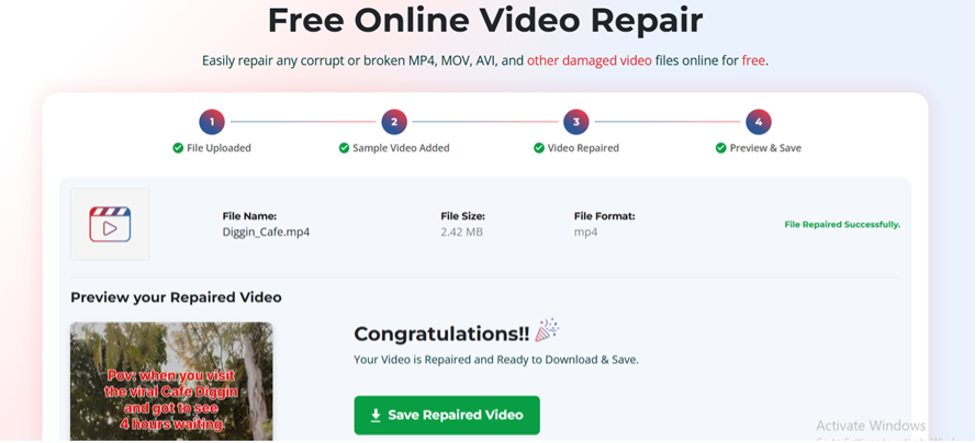
- After repairing the video, this online tool lets you preview the repaired files before saving them on your device.
- For severely corrupted videos, the Advanced Repair feature can use a reference “sample file” to improve repair accuracy.
- Designed for ease of use, the tool offers a simple workflow suitable for both beginners and experienced users.
Step-by-Step Guide to Repairing Videos with Stellar Repair for Video Online
Step 1: Open a web browser on your PC, and go to the Stellar Online Video Repair page. Click Upload Video and add the video file you need to repair.
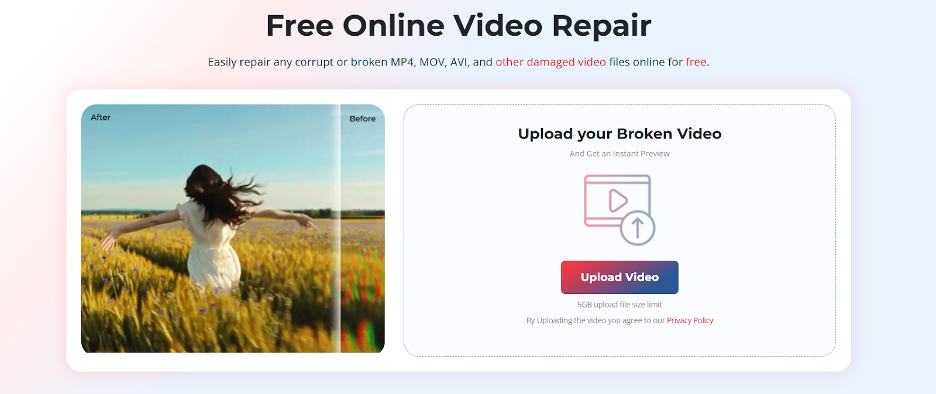
Step 2: If the uploaded video is severely corrupt, you may need to add a sample video. A sample file is a working video recorded with the same device and format as the corrupted file.
Step 3: Click Start Repair to initiate the repair process and wait till it is completed. The tool will run its algorithms to fix headers, indexes, frame data, and other structural issues.
Step 4: Once the repair is complete, click the Save Repaired Video button to download the fixed video to your device.
Preventive Tips to Avoid Video Corruption in Future
Video corruption can happen at any time. While the methods above can help repair corrupted videos, it’s best to prevent such issues in the first place by following the preventive measures below:
- Always safely eject external storage devices from your computer.
- Avoid interruptions, such as power failures or forced shutdowns, while recording, transferring, or editing video files.
- Keep your camera firmware, operating system, and media players up to date.
- Protect devices from viruses and malware by using a reliable antivirus software.
- Create regular backups of your important video files at multiple locations, such as cloud storage and external drives.
Wrapping Up
Video corruption is a common issue and can happen to anyone at any time. Whether your video is corrupt due to recording errors, system crashes, or unsupported codecs, the above methods will help you easily repair it. With these free repair solutions, you can repair corrupted MP4 videos without spending money on expensive software. Additionally, following proper recording, transfer, and storage practices will help prevent future corruption and keep your video files safe.