
The digital learning landscape has evolved rapidly, with an increasing number of learners relying on online platforms. Whether it’s corporate training, academic lessons, or professional development courses, video-based education has become a fundamental medium.
However, many educational videos lack accessibility features, creating challenges for diverse learners. Without captions, non-native speakers, individuals with hearing impairments, and those with learning difficulties struggle to grasp content effectively.
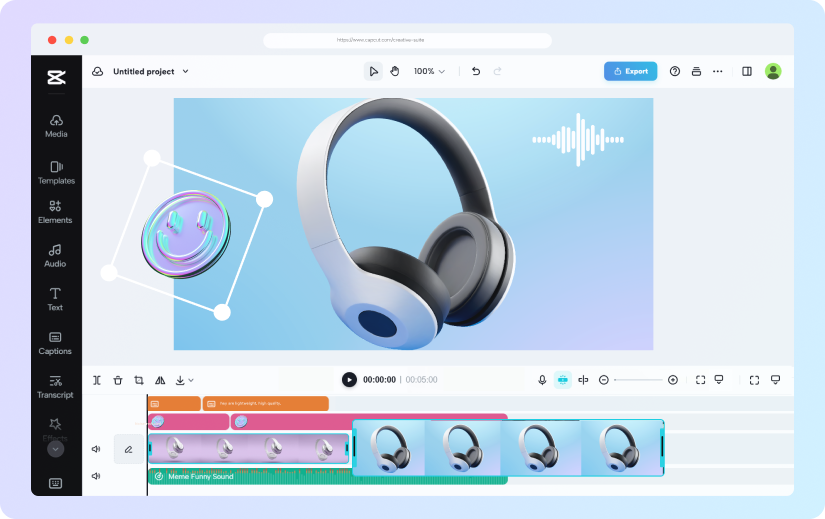
A video editor for PC like CapCut desktop video editor plays a crucial role in enhancing educational content. With powerful captioning tools, it ensures that training videos are more inclusive, engaging, and optimized for comprehension. The addition of captions not only improves accessibility but also boosts retention, participation, and searchability.
Enhanced Accessibility for Diverse Learners
Captions are an essential tool for making educational content inclusive. Various learners benefit from captions in distinct ways:
Benefits for Learners with Hearing Impairments
Hearing-impaired individuals often face barriers when consuming audio content. Captions provide an alternative means to access the information, ensuring they receive the same educational benefits as other learners. By displaying spoken dialogue in text format, captions create a more inclusive learning environment.
Helping Non-Native Speakers Understand Complex Terminology
Language barriers can make training videos difficult to follow. Non-native speakers may struggle with pronunciation, fast-paced speech, or technical jargon. Captions provide written reinforcement, allowing learners to read along and understand complex terms better. This feature is especially valuable for international students and professionals undergoing multilingual training.
Captions Supporting Students with Learning Disabilities
Learners with ADHD, dyslexia, or other cognitive challenges benefit significantly from captions. Reading along with the audio helps them maintain focus, structure information better, and process learning materials more effectively. Captions act as an additional cognitive cue, reinforcing key concepts and improving comprehension.
Improving Comprehension and Retention
Scientific research supports the cognitive advantages of captions in learning environments. When learners read and listen simultaneously, they engage in a dual-channel processing approach that enhances understanding.
The Cognitive Science Behind Text-Based Learning Reinforcement
According to cognitive load theory, learners absorb information better when presented in multiple formats. Captions reinforce auditory content with visual text, reducing cognitive overload and making complex concepts easier to retain.
How Captions Help Learners Focus on Key Concepts
Training videos often contain a wealth of information. Captions highlight essential points, helping learners distinguish between critical details and background information. This visual reinforcement keeps learners engaged and prevents distractions.
Studies Showing Improved Retention Rates with Captioned Videos
Various studies demonstrate that captioned videos lead to better retention. Research by the National Research Council found that students who used captioned videos performed significantly better on comprehension tests than those who relied on audio alone. Captions encourage active learning, making knowledge retention more effective.
Making Training Videos More Interactive
Adding captions does more than improve accessibility; it transforms passive watching into an interactive learning experience.
How Captions Encourage Active Participation
When learners follow along with captions, they engage more deeply with the content. Captions prompt learners to process information visually and aurally, increasing participation and reinforcing key concepts.
Using Captions for Keyword Emphasis and Information Reinforcement
Captions can be strategically used to highlight critical terminology, definitions, or instructions. By formatting key phrases in bold or a different color, educators can draw attention to essential points, making content more engaging.
CapCut Desktop Video Editor’s Ability to Generate Real-Time Captions for Better Learning
CapCut desktop offers an advanced caption generator that automatically transcribes speech into text with high accuracy. This feature eliminates the need for manual captioning, making the process quick and efficient. Real-time captioning allows educators to enhance their videos seamlessly, improving overall learning outcomes.
SEO and Searchability for Educational Content
Beyond learning benefits, captions also improve the visibility of educational videos on search engines.
Making Training Videos Discoverable Through Search Engines
Search engines cannot index audio content, but they can read text. Captions act as transcripts, making videos more searchable. When users search for specific topics, captioned videos rank higher, reaching a broader audience.
How Transcriptions Boost Content Reach and Usability
A transcript accompanying a training video allows learners to skim through the content, locate important sections, and reference information later. This added usability enhances the value of training materials.
The Role of CapCut Desktop Video Editor in Optimizing Educational Content for SEO
CapCut desktop simplifies the process of adding captions and exporting transcripts, helping educational videos gain better visibility online. By using CapCut’s features, creators can optimize their content for search engines, ensuring their materials reach a larger audience.
How to Generate Captions? – Step by Step
Adding captions to training videos using CapCut is straightforward. Follow these steps to create high-quality captions efficiently.
Step 1: Prepare Your Video Project
Start by downloading and installing CapCut on your desktop. Open the software and create a new project. Upload your video or audio file to the timeline. If needed, browse CapCut’s stock media library to enhance your content with additional visuals or sound elements.
Step 2: Use AI to Generate Captions
Once your media is uploaded, drag it to the timeline. Navigate to the “Text” menu and select “Auto Captions.” This caption generator automatically transcribes spoken content into text. Choose the preferred language, enable automatic punctuation, and remove filler words for a cleaner transcript. After generating captions, review and adjust them for accuracy.
Step 3: Edit and Style Your Captions
Open the captions editor to refine the text. Modify, delete, or adjust phrases as needed. Customize the font, size, color, and background to match your video’s theme. You can also add effects like animations and transitions. If required, translate captions into another language using CapCut’s built-in tools. Additionally, the CapCut desktop allows you to use a free AI video generator to convert your captions into animated text videos, enhancing engagement.
Step 4: Save and Share Your Video
Once your captions are finalized, click “Export” to adjust video settings such as format and resolution. Choose the desired file type, including MP4 or WAV. CapCut desktop also allows direct uploading to platforms like YouTube, TikTok, and educational websites, making sharing seamless.
Conclusion
Adding captions to training and educational videos significantly enhances accessibility, comprehension, engagement, and SEO. Whether catering to learners with hearing impairments, supporting non-native speakers or improving retention, captions elevate digital education.
CapCut desktop video editor offers an efficient, user-friendly solution for generating high-quality captions. With advanced AI-powered tools, customizable text styles, and seamless sharing options, CapCut desktop simplifies the captioning process. Implementing captions in educational videos ensures inclusive and compelling learning experiences, making content more impactful for a global audience.